

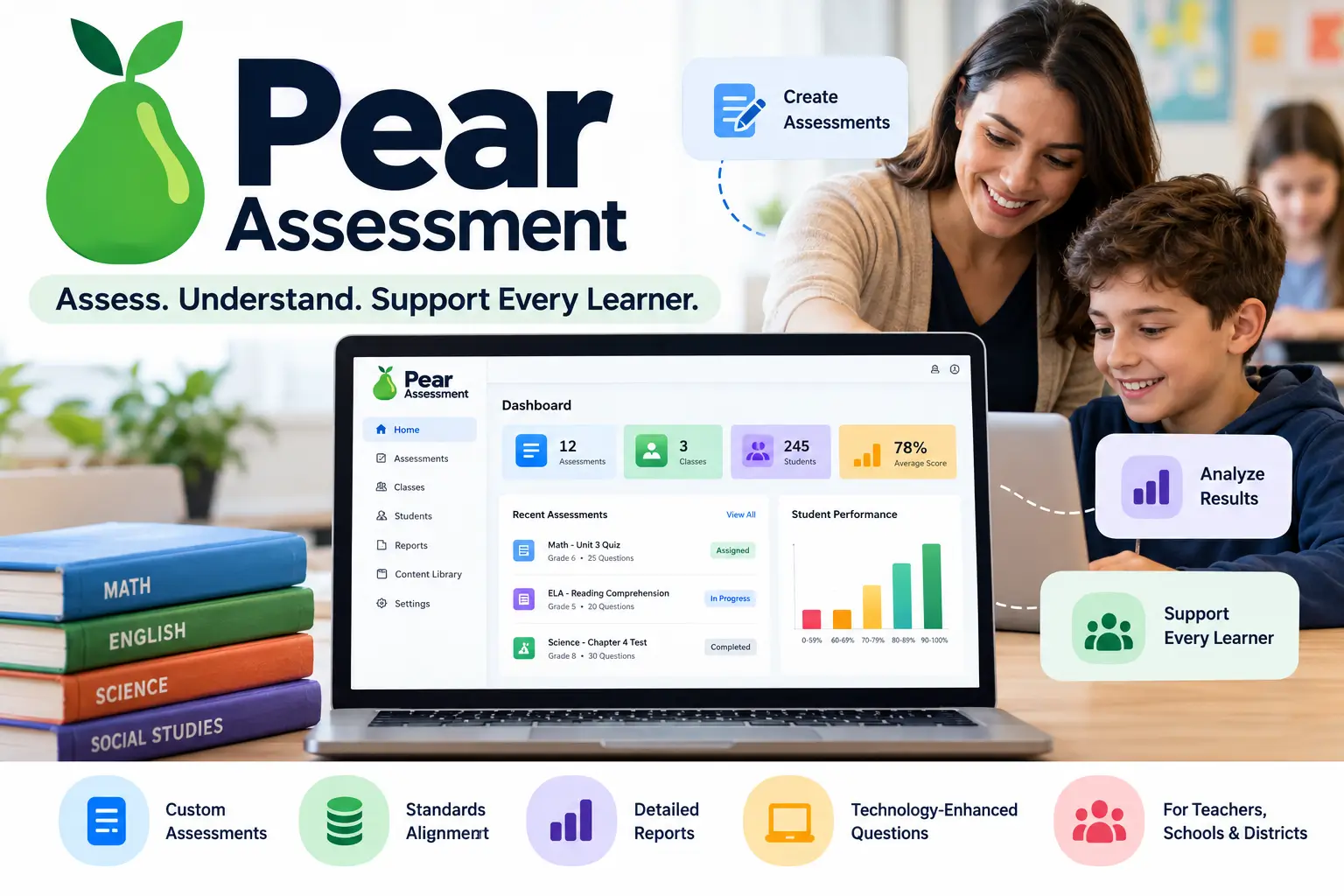
If you are looking for an online assessment platform for K–12 education, you may have come across Pear Assessment.
Pear Assessment is a digital assessment platform that helps educators create, assign, deliver, and analyze assessments. Teachers can use it for classroom quizzes and formative assessments, while schools and districts can use it for common assessments, benchmark testing, standards-based assessment, and broader reporting.
The platform has also evolved beyond its earlier Edulastic identity. Today, Pear Assessment combines assessment creation with technology-enhanced questions, student response data, standards-based reporting, testing controls, integrations, and AI-assisted assessment tools.
This guide explains what Pear Assessment is, how it works, how teachers and students access it, what features are available, whether it is free, and what you should know before using it.
What Is Pear Assessment?
Pear Assessment is a K–12 digital assessment platform designed to help educators measure student understanding and use assessment data to guide instruction.
Teachers can create their own assessments or use existing content, assign assessments to students, monitor responses, and review performance reports.
The platform is designed for several levels of assessment, including classroom assessments, common assessments, and district-level testing. It also provides tools for standards alignment, assessment customization, reporting, and secure testing.
In practical terms, the basic workflow is:
Create an assessment → Assign it → Collect responses → Review results → Adjust instruction.
This makes Pear Assessment different from a simple online quiz form. The assessment itself is only one part of the workflow; the resulting data can help teachers understand where students are succeeding and where additional support may be needed.
Who Uses Pear Assessment?
Pear Assessment is primarily designed for the K–12 education environment, but different users can use the platform in different ways.
Teachers
Teachers can use Pear Assessment for everyday classroom assessment, including quizzes, exit tickets, formative assessments, unit tests, and standards-aligned checks for understanding.
Schools
Schools can use common assessments and reporting tools to create more consistent assessment practices across classrooms and grade levels.
Districts
Districts can use the platform for larger assessment programs, common benchmarks, centralized reporting, testing controls, and integrations with existing education systems.
Students
Students use Pear Assessment to complete assessments assigned by their teachers or schools.
How Does Pear Assessment Work?
Pear Assessment follows a relatively straightforward assessment workflow.
A teacher first creates an assessment or selects existing content. The assessment can then be assigned to a class or specific group of students.
Once students begin working, teachers can monitor responses through available classroom assessment tools. After the assessment is completed, educators can review reports to examine individual and class performance.
This workflow can be useful for both immediate classroom decisions and longer-term progress monitoring.
For example, a teacher may discover that many students are struggling with the same mathematical concept. Instead of waiting for a final exam, the teacher can use that information to revisit the topic.
Pear Assessment Features
Pear Assessment includes features for assessment creation, delivery, analysis, and administration.
Assessment Creation
Teachers can create assessments from scratch and customize them for their own curriculum.
This is useful when an educator wants to assess exactly what was taught instead of relying entirely on generic tests.
Teachers can also work with existing assessments and content, making it possible to reuse or adapt material rather than creating every assessment from the beginning.
Technology-Enhanced Questions
Pear Assessment supports more than traditional multiple-choice testing. The platform provides a variety of technology-enhanced question formats that can give students different ways to demonstrate their understanding.
Depending on the assessment, educators can also work with multimedia, hints, standards information, difficulty levels, and other assessment metadata.
The important point is to choose a question format because it supports the learning objective, rather than simply because the format looks interactive.
Pre-Built Assessment Content
Teachers do not always have to start with a blank assessment. Pear Assessment provides access to pre-built assessment content and standards-aligned questions.
Available material can cover subjects such as:
- Math
- English Language Arts
- Science
- Social Studies
Pre-built content can save teachers time, but it should still be reviewed before being assigned to students.
A ready-made assessment may not perfectly match the teacher’s grade level, curriculum, learning objectives, pacing, or student needs.
Standards Alignment
Standards alignment is an important part of Pear Assessment.
Teachers can connect assessment questions with relevant learning standards and use assessment data to understand performance in relation to those standards.
This provides more context than looking at a final percentage alone. An educator can examine which skills or standards may require additional instruction.
Live Class Board
Pear Assessment provides tools that can give educators visibility into student responses while an assessment is taking place.
This can be especially useful for formative assessment because teachers may identify misunderstandings before the assessment has completely finished.
For example, if several students make the same mistake, the teacher can identify the pattern and decide whether immediate clarification is needed.
Assessment Reports
Reporting is an important part of the Pear Assessment workflow.
Educators can use assessment results to examine individual student performance, class performance, and standards-related progress.
Instead of simply asking how many questions a student answered correctly, teachers can use the available data to identify areas where students may need additional support.
Secure Testing
Pear Assessment also provides controls designed for more controlled testing environments.
Depending on the account and configuration, assessment security options can include browser restrictions, dynamic passwords, and other testing settings.
Schools should configure these controls according to their own assessment policies and testing requirements.
Standardized Test Preparation
Pear Assessment can also be used to help students prepare for digital standardized assessments.
Practice assessments can familiarize students with digital testing formats and help teachers identify areas that need additional practice.
Pear Assessment Login
The Pear Assessment login process depends on the type of account and authentication system used by the school.
Depending on the account configuration, users may have access to authentication options such as Google, Microsoft 365, Clever, or username and password.
Teacher Login
Teachers generally sign in using the account associated with their Pear Assessment setup.
If your school uses Google, Microsoft 365, Clever, or another supported authentication method, use the account provided by your school.
Student Login
Students should normally use the login method provided by their teacher or school.
If an assessment does not appear after logging in, check that you are using the correct school account and that the teacher has assigned the assessment.
How to Use Pear Assessment as a Teacher
Teachers can start with a simple assessment before moving into more advanced features.
Step 1: Sign In
Sign in to your Pear Assessment teacher account using the authentication method available to your school or account.
Step 2: Set Up Your Class
Set up your class or connect the supported classroom system used by your school.
Step 3: Create or Find an Assessment
Create an assessment yourself or search the available assessment content.
Step 4: Add or Review Questions
Choose questions that match your learning objectives. Review the wording, answers, standards, scoring, and difficulty before assigning the assessment.
Step 5: Assign the Assessment
Select the appropriate class or student group and configure the available assignment settings.
Step 6: Monitor Responses
During an active assessment, use the available classroom monitoring tools to review student responses.
Step 7: Review the Results
After students finish, review the available reports and identify patterns in student performance.
Step 8: Use the Data
The final step is the most important. Use assessment results to decide whether students need additional explanation, practice, enrichment, or a different instructional approach.
How Students Use Pear Assessment
From a student’s perspective, the basic process is straightforward.
- Sign in using the school’s approved method.
- Access the correct class or assignment.
- Open the assessment.
- Read the instructions carefully.
- Complete the questions.
- Submit the assessment.
The exact experience can vary depending on the teacher’s assessment settings and the school’s technology environment.
Pear Assessment and Google Classroom
Pear Assessment is designed to work with common education technology systems and classroom environments.
Depending on the school’s configuration and plan, educators may be able to synchronize class information, share assignments, and work with supported learning-management systems.
The exact integration available to a teacher depends on the school’s account configuration.
If an integration is not working, the issue may be related to the school’s roster, LMS, authentication, or account setup rather than the assessment itself.
Is Pear Assessment Free?
Pear Assessment offers a free educator option, while additional features and capabilities can depend on the selected plan.
For individual teachers, the free option can provide access to core assessment creation and delivery features.
Schools and districts may require additional capabilities such as centralized reporting, common assessments, account management, expanded integrations, or other administrative tools.
Because education software plans can change over time, users should check the current plan information before making a purchasing decision.
Pear Assessment Pricing: What Should You Check?
When comparing Pear Assessment plans, price should not be the only consideration.
Teachers should first determine whether the available features match their classroom needs.
- Can I create custom assessments?
- Which question types are available?
- Can I use pre-built assessment content?
- What reporting tools are included?
- Can I connect my classroom?
Schools and districts may also need to consider centralized reporting, common assessments, account management, LMS or SIS integrations, testing controls, and implementation support.
Pear Assessment and Edulastic: Are They the Same?
If you have searched for Pear Assessment before, you may have noticed another name: Edulastic.
Pear Assessment was formerly known as Edulastic. This is why older articles, tutorials, videos, and screenshots may still use the Edulastic name.
The important thing to remember is that older resources may not accurately represent the current interface or current feature set.
If you are following an older Edulastic tutorial, check its publication date before assuming that every button or setting will look the same today.
Pear Assessment for Formative Assessment
One of the practical uses of Pear Assessment is formative assessment.
Formative assessment happens during the learning process rather than only after instruction has finished.
For example, a teacher might give students a short assessment after teaching a new concept. The results can help answer several questions:
- Did students understand the lesson?
- Which concept caused the most difficulty?
- Which students need additional support?
- Is the class ready to move to the next topic?
The important part is what the teacher does with the information. Assessment becomes more useful when the results influence the next instructional decision.
Pear Assessment for Benchmark and Common Assessments
Pear Assessment can also be used beyond individual classroom quizzes.
Schools and districts can create common assessments that are used across multiple classes or student groups.
A common assessment can help educators measure the same learning objectives across different classrooms and identify broader patterns in student performance.
This type of workflow is particularly relevant for schools and districts that need more consistent assessment practices.
Does Pear Assessment Use AI?
Yes. Pear Deck Learning has been expanding AI-assisted capabilities within its assessment tools.
These capabilities can assist educators with assessment creation, content refinement, standards alignment, and analysis of assessment data.
AI can reduce some of the manual work involved in building and interpreting assessments, but educators should still review AI-assisted suggestions before using them for important instructional or assessment decisions.
Pear Assessment: Strengths and Considerations
Pear Assessment covers a broad range of assessment needs, but the right platform depends on the requirements of the teacher, school, or district.
Strengths
- Custom digital assessments
- Technology-enhanced question formats
- Standards alignment
- Pre-built assessment content
- Real-time student responses
- Assessment reporting
- Common assessment support
- Testing controls
- Education technology integrations
Things to Consider
- Available features can depend on the selected plan.
- Pre-built content should be reviewed before use.
- Integration capabilities depend on school configuration.
- Digital assessments require suitable devices and connectivity.
- AI-assisted features still require educator review.
Common Pear Assessment Problems
Pear Assessment Login Is Not Working
First check that you are using the correct account and authentication method.
If your school uses Google, Microsoft 365, Clever, or another authentication system, make sure you are signing in with the account associated with your school.
If you still cannot access the platform, your teacher, technology administrator, or school administrator may need to check the account configuration.
A Student Cannot See an Assessment
Check whether the student is using the correct account and is connected to the correct class.
The teacher should also confirm that the assessment has been assigned and is currently available.
Assessment Results Are Not Showing
Make sure students have submitted their work and that you are viewing the correct class and assessment.
For larger school implementations, an administrator may also need to check roster or integration settings.
Classroom Integration Is Not Working
If your class or grades are not syncing as expected, check whether the relevant classroom or LMS integration has been configured correctly.
The exact solution can depend on your school’s account and implementation.
Pear Assessment vs. a Basic Online Quiz Tool
Pear Assessment and a basic online quiz tool may look similar because both can deliver questions online. The main difference is the depth of the assessment workflow.
| Feature | Basic Quiz Tool | Pear Assessment |
|---|---|---|
| Create questions | Yes | Yes |
| Digital assessments | Yes | Yes |
| Technology-enhanced questions | Varies | Yes |
| Standards alignment | Varies | Yes |
| Real-time responses | Varies | Yes |
| Assessment reporting | Basic to moderate | Advanced reporting options |
| Common assessments | Usually limited | Supported |
| District assessment | Usually limited | Supported |
| Testing controls | Varies | Available |
| Education integrations | Varies | Supported |
The key difference is that Pear Assessment is designed around a broader assessment and instructional workflow rather than simply collecting answers and producing a score.
Tips for Using Pear Assessment Effectively
You do not need to use every feature when you first start.
A better approach is to begin with one clear learning objective and create a focused assessment around it.
If you use pre-built content, review it before assigning it. Make sure the questions match your grade level, curriculum, and students.
When reviewing results, do not focus only on the overall score. Look for patterns in responses and standards data.
Most importantly, use the results to make a decision. If students consistently struggle with a particular concept, the assessment can help identify where additional explanation or practice may be needed.
Frequently Asked Questions About Pear Assessment
What is Pear Assessment?
Pear Assessment is a K–12 digital assessment platform that helps educators create, deliver, monitor, and analyze assessments.
Is Pear Assessment free?
Pear Assessment offers a free educator option, while additional features and capabilities can depend on the selected plan.
Is Pear Assessment the same as Edulastic?
Pear Assessment was formerly known as Edulastic. Older educational resources may therefore use the Edulastic name.
How do I log in to Pear Assessment?
The login method depends on your account and school setup. Available authentication methods can include Google, Microsoft 365, Clever, or username and password.
Can students use Pear Assessment?
Yes. Students can use Pear Assessment to complete assessments assigned by their teachers or schools.
Can teachers create their own assessments?
Yes. Teachers can create custom assessments and work with existing assessment content.
Does Pear Assessment have pre-built assessments?
Yes. Pear Assessment provides pre-built assessment content and standards-aligned questions that teachers can review and use.
Does Pear Assessment support different question types?
Yes. The platform supports a variety of technology-enhanced question formats in addition to traditional question types.
Does Pear Assessment use AI?
Yes. Pear Assessment includes AI-assisted capabilities designed to support assessment creation, standards alignment, and analysis.
Can Pear Assessment be used for benchmark testing?
Yes. Pear Assessment can support classroom, common, and district-level assessment workflows, including benchmark-style assessments.
Can Pear Assessment be used for state-test preparation?
Yes. The platform provides assessment tools that can help students practice digital testing formats and prepare for standardized assessments.
Final Thoughts
Pear Assessment is designed to bring several parts of the assessment process into one platform.
Teachers can create or find assessment content, assign it to students, monitor responses, and analyze results. Schools and districts can extend that workflow into common assessments, benchmark testing, centralized reporting, and controlled testing environments.
The platform is also expanding its use of AI-assisted assessment creation and analysis, while keeping educators involved in reviewing and acting on the information.
For a teacher, the most useful way to approach Pear Assessment is not to start with every available feature. Start with one clear learning objective, build a focused assessment, review student responses, and use the results to decide what should happen next.
Ultimately, the value of a digital assessment platform is not simply giving students an online test. It is helping educators turn assessment results into information that can support better instructional decisions.
