


A beautiful map that nobody understands is a failed map. Players land in your carefully built town, see three doors, a sentry in a wizard hat, and a mysterious button — and have absolutely no idea what to do. Words fix that. The humble gimkit text device turns your map from a silent diorama into a place that explains itself: signs that label buildings, instructions at the start, and characters who actually talk.
This guide walks through every way Creative lets you put words in front of players: the Text device itself, popups for conversations, and the newer Character and Dialogue devices. We will also cover the design mistakes that make text hurt instead of help — because a wall of text is only slightly better than no text at all. If you are just getting started with building, our main Gimkit Creative guide covers the editor basics first.
What the Text device does
The Text device places a block of writing directly on the map. Players see it as they walk around — no button press, no popup, no interruption. That makes it perfect for anything a player should absorb while moving:
- Signs above doors, shops, and arenas (“Library”, “Boss Room →”, “Team 1 Base”).
- Instructions at spawn (“Answer questions to earn energy. Reach the top to win!”).
- Labels and lore — street names, statue plaques, fake newspaper headlines, jokes.
Text devices are cheap and flexible: you control the words, the size, and how visible the text is against your terrain. Because the text lives in the world, players read it exactly where it is relevant — a sign that says “Danger: lasers ahead” does its job at the laser corridor, not in an instruction screen three minutes earlier.
The Text device has one honest limitation: it is static. It cannot change based on what a player does, and it cannot ask the player anything. For words that need to react — conversations, choices, changing objectives — you need the interactive tools below.

gimkit dialogue
Real conversations need the gimkit dialogue approach, and Creative gives you two ways to build it.
The first is the dedicated Dialogue device, introduced alongside the Character device. A Dialogue device opens a pop-up-style conversation window: the character’s words appear, and you can offer response options that transmit on channels when chosen. That means a conversation can actually do things — accept a quest, open a door, hand over an item, start a boss fight. One honest catch, confirmed by the creator community: the Character and Dialogue devices are Season Ticket exclusives, so builders without the pass cannot place them.
The second way works for everyone and is still how most maps do it: the Popup device. Wire a Button (or a Zone) near a character to open a popup containing the character’s line. Add call-to-action buttons inside the popup — “Ask about the key”, “Say goodbye” — and each button can open another popup or fire a channel. Chained popups become branching conversations with nothing but buttons and popups. It takes a few more devices than the Dialogue device, but it has no ticket requirement and every creator can use it today.
Whichever route you take, write dialogue like a person, not a textbook. Short lines, one idea per popup, and a little personality go a long way — students quote funny NPC lines back to teachers for weeks.
npc text gimkit creative
The standard recipe for npc text gimkit creative builders use combines three pieces:
- A visible character. Place a Sentry, set it to a friendly team so it does not attack, and pick a skin and name that fit the role — the shopkeeper, the guard, the mysterious stranger.
- An invisible trigger point. Put a Button with its visibility turned off, or a Zone, right in front of the character. Players “talk” by interacting with the space in front of the NPC.
- A popup conversation. Wire the button to open your popup chain, as described above.
Position matters: the interaction point must be exactly where players naturally stand to face the character. If the button is a tile too far left, players will mash around the NPC wondering why nothing happens. Playtest every character by walking up to them the way a distracted ten-year-old would.
Pairing NPCs with props sells the illusion. A character behind a counter prop reads as a shopkeeper before a single word appears, and our Gimkit Creative props guide shows how much storytelling a few well-placed objects can do.
gimkit signs
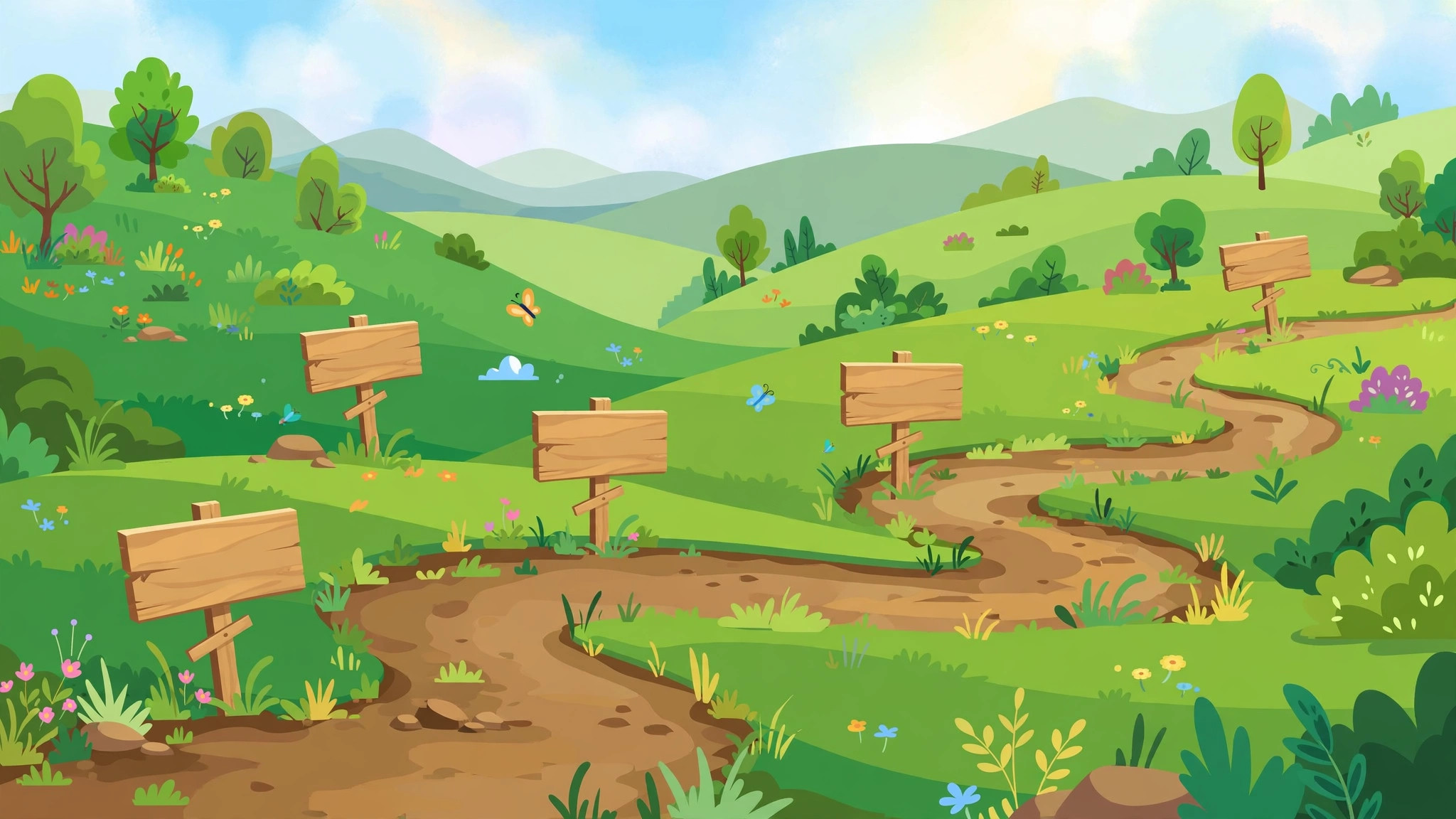
Signs deserve their own moment, because good gimkit signs follow rules that are easy to get wrong:
- Say it in five words or fewer. “← Market”, “Boss Ahead”, “Team 2 Only”. A sign players must stop to read is a failed sign; a sign they absorb at a glance is doing its job.
- Put the sign before the decision. A label on the door is good; the same label on the wall facing the door, where players see it while approaching, is better.
- Stay consistent. If your map uses arrows, always use arrows the same way. If signs are wooden-brown in the village, do not switch to floating white text in the castle — visual consistency is how players learn to trust your signage.
- Contrast beats decoration. Light text on dark terrain, dark text on light terrain. Test every sign at a glance from a few tiles away, not zoomed in inside the editor.
Directional signs matter most in big maps. In a sprawling build like the ones in our Gimkit escape room guide, one clear sign at each junction quietly prevents the “I’m lost, this is boring” moment that makes students check out.
Text device settings worth knowing
Placing text is easy; placing it well takes a minute of settings work. The options that matter most:
- Size and layering. Text renders above terrain by default, but props and devices can crowd it. If a sign sits behind a busy area, raise its size rather than moving it — players read big text first, and your important sign should win the competition for attention.
- Color against terrain. Every map has a dominant floor color. Pick text that contrasts with the floor it sits on, not the floor you wish you had used. Snow maps want dark text; dark-space maps want bright text. Change floors mid-map and you must re-check every sign.
- Visibility range. Text that is readable from across the map is great for a giant arena title and terrible for a hint — a clue everyone can read from spawn is not a clue anymore. Match the size to the distance at which the words should be discovered.
A good habit: after finishing a build, do one full playthrough at normal zoom and read only your text, in the order a player would meet it. If the text alone tells a coherent story — where am I, what do I do, where do I go — the map is ready. If it reads like random fragments, the fix is almost always placement, not more words.

Writing instructions players actually read
The spawn-area instruction block is the most skipped text in any game — unless you write it for skimmers. Three techniques help:
First, lead with the goal, not the controls. “First team to bank 10,000 cash wins” teaches more in six words than a paragraph about buttons. Controls can come second, and only the ones that are unusual.
Second, use the Text device for the short version and a popup for the long version. A two-line sign at spawn (“Answer questions at Questioners to earn energy. Spend energy to climb!”) plus an optional “How to play” button with details respects both the fast readers and the careful ones.
Third, repeat key instructions at the moment of use. A short text note next to the first Questioner (“Answer here for energy”) outperforms a perfect manual at spawn, because players read what is in front of them. The official Gimkit Help Center is a good model — its device pages each explain one thing, in the place you look for it.
Frequently asked questions
What is the difference between the Text device and a Popup?
The Text device is static writing placed on the map itself — players read it as they walk past. A Popup is a window that opens in front of the player, usually from a button, zone, or channel, and can include clickable call-to-action buttons. Use Text for signs and labels; use Popups for conversations and instructions players must not miss.
Do I need the Season Ticket for dialogue?
For the dedicated Character and Dialogue devices, yes — the creator community reports both as Season Ticket exclusives. The Popup-based method in this guide needs no ticket at all and can reproduce most conversation effects with buttons and chained popups.
How do I make an NPC that does not attack players?
Place a Sentry and change its team in its settings so it is on the players’ team (for example, Team 1 in a cooperative map). A friendly sentry stands as a character without firing, and you can rename it and change its skin to fit the role.
Why can’t players find my NPC’s talk button?
Usually the interaction point is not where players stand. Move the invisible button or zone directly in front of the character, make sure it is active on game start, and check that its scope is set to everyone rather than a single team.
Final thoughts
Words are the cheapest special effect in Gimkit Creative. A gimkit text device sign costs almost nothing to place, yet it is the difference between a map students explore and a map they wander. Label everything important, give every character something to say, and keep every line short enough to read at a run. Your players will never thank the signs — they will just never get lost, and that is the same thing.
