

If you have ever watched your students light up during a game-based review, you already know why so many teachers ask how to make a Gimkit kit of their own. A kit is the question set at the heart of every Gimkit game, and building one is simpler than most first-time users expect.
In this guide, we will walk through the whole process: creating the kit, adding strong questions, choosing a mode, and hosting your first live game. By the end, you will have a reusable kit you can run again all year. If you want the deeper question-writing details afterwards, our companion guide on how to add questions to Gimkit goes further.
how to create a gimkit kit
Creating a kit starts on your teacher dashboard on the official Gimkit site. Once you are signed in, look for the option to create a new kit. You will be asked to give your kit a name, and it pays to be specific: a name like “Fractions Review – Grade 5” is far easier to find in your library later than “Quiz 1.”
Next, choose how you want to build the question list. You have three main routes:
- Type questions manually — best for short, targeted sets you write yourself.
- Import a flashcard set — if your questions already live in a flashcard tool, you can bring them in instead of retyping.
- Start from an existing kit — duplicate a kit you or a colleague already made and edit it.
After naming the kit, add your questions one at a time. Each question needs a correct answer and, for multiple choice, a few believable wrong answers. Save as you go, and your kit is stored in your library, ready to host or assign whenever you need it.
One practical tip: build slightly more questions than you think you need. Games feel repetitive when students cycle through the same ten questions, so a bank of twenty or more keeps every round fresh.
Before saving, give the kit a sensible cover and description where the editor offers them. A clear title and a one-line description (“Year 8 chemistry: acids and alkalis, 24 questions”) make the kit recognisable in your library and in search results if you share it publicly. It takes twenty seconds now and saves a preview click every time you come back to it.
Also think about question order while you create. The editor lets you drag questions into sequence, and although games cycle through the bank, a logical build — definitions before applications, gentle before hard — helps when you use the same kit for a calm mode or an assignment later. Teachers who organise at creation time almost never need a big reorganisation later.
gimkit kit creator
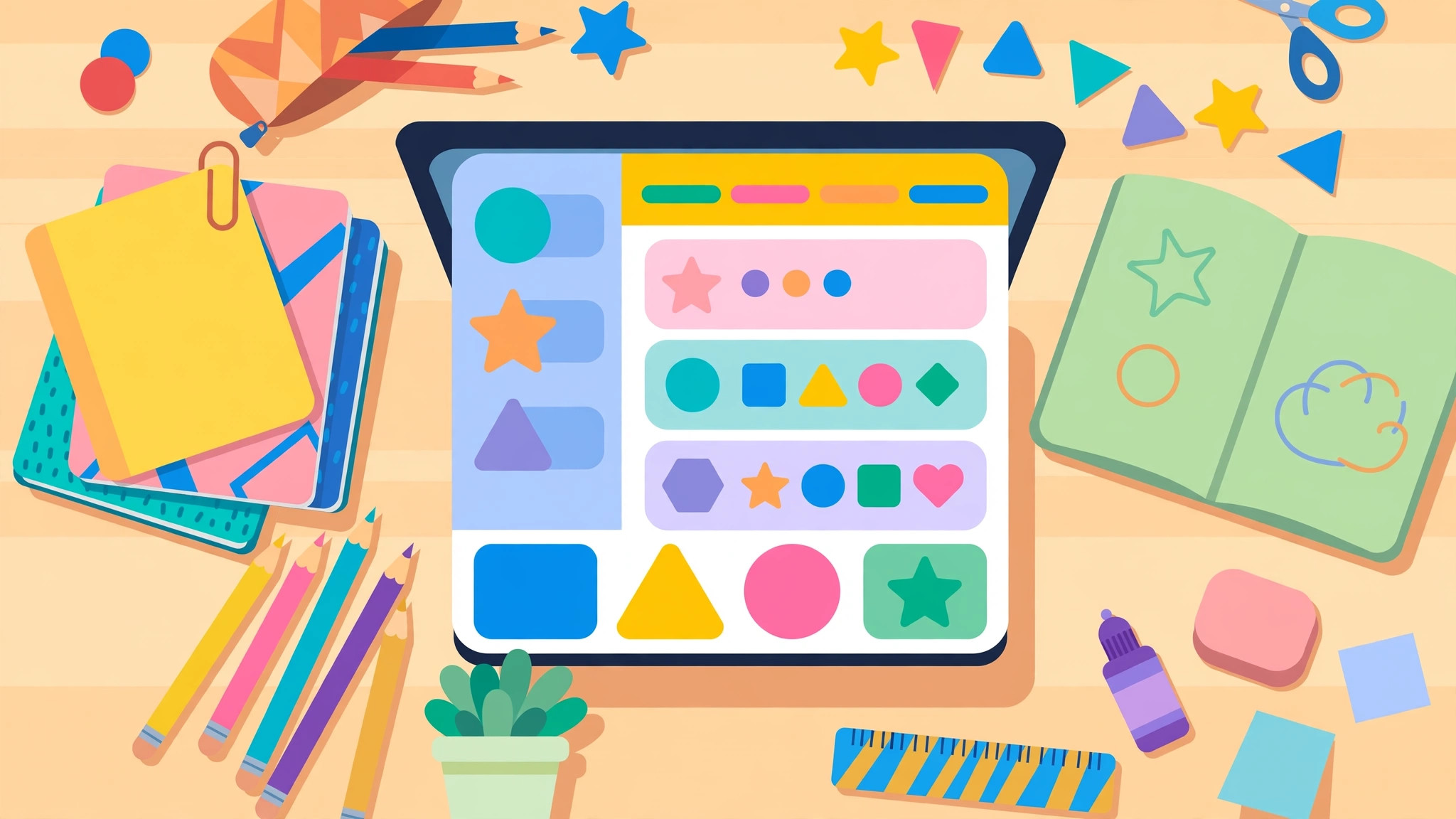
The gimkit kit creator is the editor screen where all of this happens, and it is designed to be forgiving. You can rearrange questions, edit wording after saving, and fix a typo in seconds without rebuilding the whole set.
Inside the creator, you will mainly work with these tools:
- Question editor — write the question text, set the correct answer, and add distractors.
- Answer format choices — multiple choice is the classic option, and text-input questions work well when you want students to produce an answer rather than recognise one.
- Media options — many teachers attach an image to a question so diagrams, maps and graphs become part of the game.
- Reordering and duplication — drag questions into a better order or copy one as a template for the next.
Spend a little time in the creator before your first live game. Clicking through your own kit as a preview helps you catch confusing wording while it is still easy to fix. Teachers who already keep sets in flashcard tools will find the flow familiar — in fact, our site’s overview of Gimkit flashcards explains how flashcard-style study connects with kit building.
make your own gimkit
The real fun starts when you make your own gimkit kit instead of borrowing a generic one. A personalised kit matches exactly what your class studied this week, including the vocabulary your textbook uses and the mistakes your students actually make.
A few ways to make a kit feel like yours:
- Mirror your lessons — turn the examples from your slides into questions, so the game reinforces the same explanations.
- Include student-friendly humour — a silly wrong answer here and there keeps energy high without hurting the learning.
- Mix difficulty — open with easy wins, build to challenge questions, and finish with a couple of confidence boosters.
- Add images — a photo of the class hamster in a maths problem is a small touch students remember.
Making your own set also means you control quality. Library kits are convenient, but only you know which misconceptions your class needs to practise. Most teachers end up with a mix: borrowed kits for busy days, homemade kits for the topics that matter most.
create a gimkit game
A finished kit becomes a game the moment you press host. When you create a gimkit game from your kit, you first pick a game mode. The classic Tycoon mode has students answering questions to earn in-game cash and buy upgrades, while the 2D modes — fishing in Fishtopia, snowball battles in Snowbrawl, platforming in Don’t Look Down — turn the same questions into an adventure.
Before launching, check the host options: set a game goal (a time limit, a cash target, or a question count), decide whether late joiners can enter, and choose whether power-ups are on. Our full breakdown of Gimkit host settings explains each switch in detail.
When the game starts, students join at the join page with the short code on your screen — no student accounts are needed for live play. Then you simply watch the leaderboard, cheer them on, and let the kit do the teaching. Afterwards, the game report shows exactly which questions the class found hard, which is gold for planning your next lesson.
gimkit new kit
Every gimkit new kit you create adds to a personal library that gets more valuable over the school year. A few habits will keep that library healthy:
- Name kits consistently — subject, topic, and level in every title makes searching painless.
- Update instead of rebuilding — after a game, edit the two or three weakest questions based on the report rather than starting over.
- Duplicate for differentiation — copy a kit and simplify or extend the questions to suit different groups in the same class.
- Retire honestly — archive kits tied to old curricula so your library stays relevant.
It is also worth knowing that free accounts have limits on how many kits you can keep, while Pro removes those limits and unlocks every mode. Whichever plan you are on, the workflow stays the same: build once, play often, improve a little each time.
Final tips for your first kit
Start small and forgiving. A twelve-question kit played this week teaches you more about your class than a fifty-question masterpiece you never finish. Keep questions short, make wrong answers plausible, and let students’ reactions guide your edits.
For official walkthroughs and the latest feature changes, the Gimkit Help Center is the best reference straight from the team behind the platform. Now open your dashboard, create that first kit, and let your students show you what they know.
the five-minute pre-flight check before you share
Once you understand how to make a gimkit kit, the last professional habit is a five-minute pre-flight check before the link ever reaches students. Play the kit yourself, start to finish, on the least powerful device you can find — an ageing Chromebook tells the truth that a gaming laptop hides. Read every question aloud once; your ears will catch the ambiguity your eyes skimmed over. Check that every image loads, every answer sits where you think it sits, and the final question is not accidentally the hardest one in the set.
Then run one social test if you can: hand the kit to a colleague, a partner, or a willing teenager and watch silently. Where they hesitate is where your students will hesitate. Fix that one spot, and your first live game starts with the confidence of a second draft instead of the luck of a first one.
naming, saving and finding your kit later
One final craft detail: name the kit for the teacher you will be in three months. “Unit 4 — Fractions Deep Dive, Spring” will still make sense in a tired moment; “New Kit (3)” will not. Save promptly, let autosave protect the draft, and if your library grows large, keep one master list somewhere simple of what exists and where. Future you, planning at midnight before an observation, sends thanks.
frequently asked questions
How long does it take to make a kit? A simple fifteen-question kit takes most teachers ten to fifteen minutes once they know the editor. Importing an existing flashcard set can cut that to five. Your first kit will be the slowest you ever make — by the third, the workflow is muscle memory.
Can students make kits too? Students can create question sets as a project, and reviewing their questions before hosting is a powerful learning activity in itself. The teacher always stays in control of what gets played: check every student-written question for accuracy and tone before it reaches the class.
Do I need a paid plan to create a kit? No — kit creation itself is open to free accounts, though free plans limit how many kits you can keep and which modes you can host them in. Create freely, and judge the upgrade only when a limit genuinely interrupts your teaching.
Can I reuse one kit with several classes? Absolutely, and you should. A single kit can be hosted live for one class, assigned as homework to another, and duplicated with harder questions for a third. Building once and reusing wisely is the entire economics of a good kit library.
