

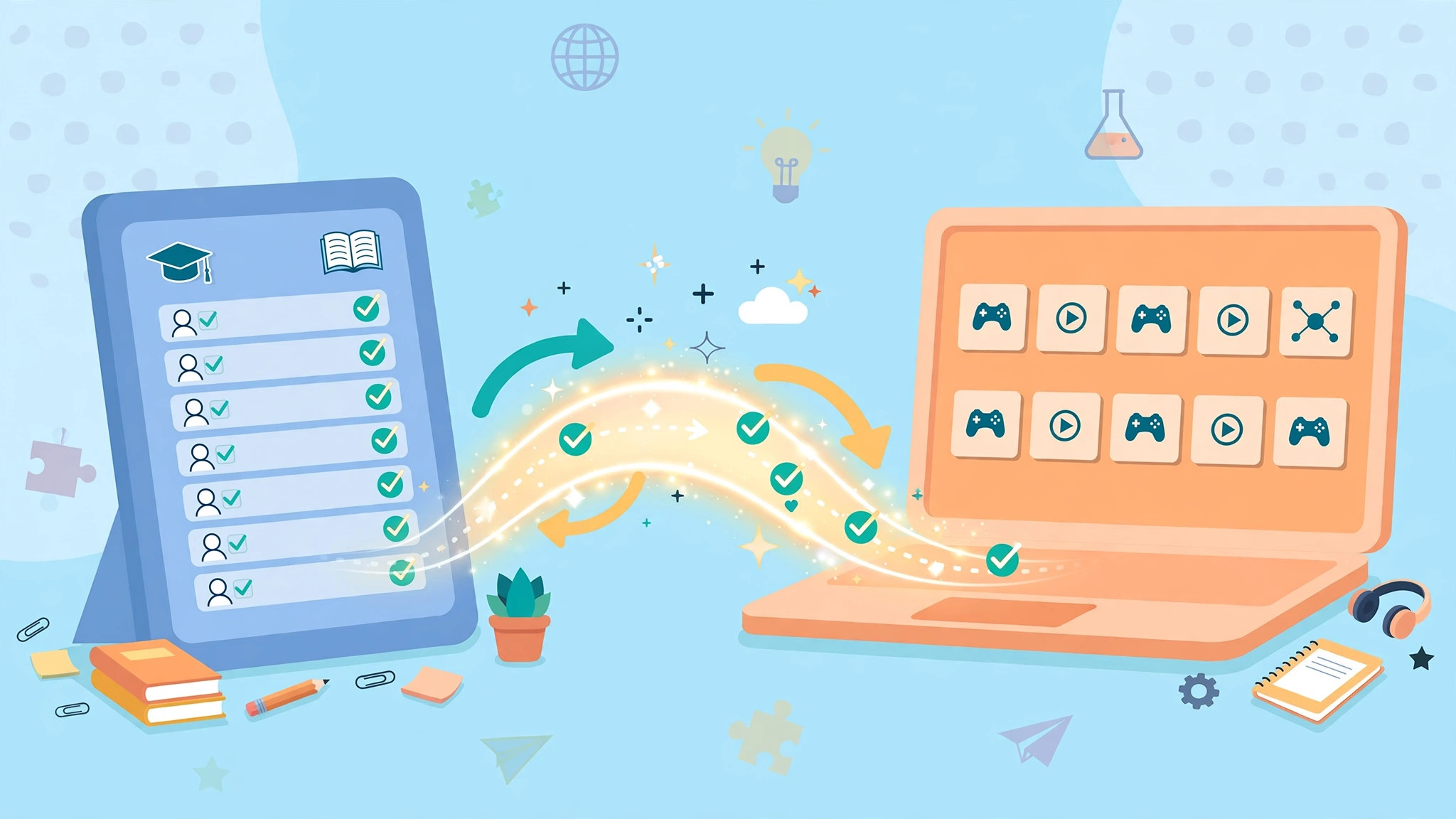
If your school runs on Google Classroom, every new tool faces the same test: does it play nicely with the rosters, streams and gradebooks you already have? Pairing gimkit google classroom tools is how Gimkit passes that test — your classes import in minutes, and assignments land right where students already look for work.
This guide walks through the whole connection: what the integration does, how to import a roster cleanly, how syncing behaves day to day, and how to use the pair together for live games and homework. If you have not created classes yet, start with our Gimkit classes guide; the Classroom connection builds on top of them.
gimkit and google classroom
The gimkit and google classroom connection exists to remove duplicate admin. Without it, a teacher maintains the same class list twice: once in the school platform where students, guardians and grades live, and once inside the game platform. Every September intake, every mid-year joiner, every name change would need doing twice — and the two lists would drift apart within a month.
With the two connected, your Google Classroom roster becomes the source of truth for your Gimkit class. Students appear with their real school names, spelled the way your school spells them. That matters more than it sounds: report data is only useful when “A. Johnson” in the game is unambiguously the same A. Johnson in the gradebook.
The connection also changes how students experience Gimkit. Instead of a mysterious link appearing in chat, assignments show up in the Google Classroom stream and classwork pages where your students already check for homework. Familiar surroundings mean fewer “I didn’t see it” conversations, and one less new system for students to learn in a year already full of them.
import roster gimkit
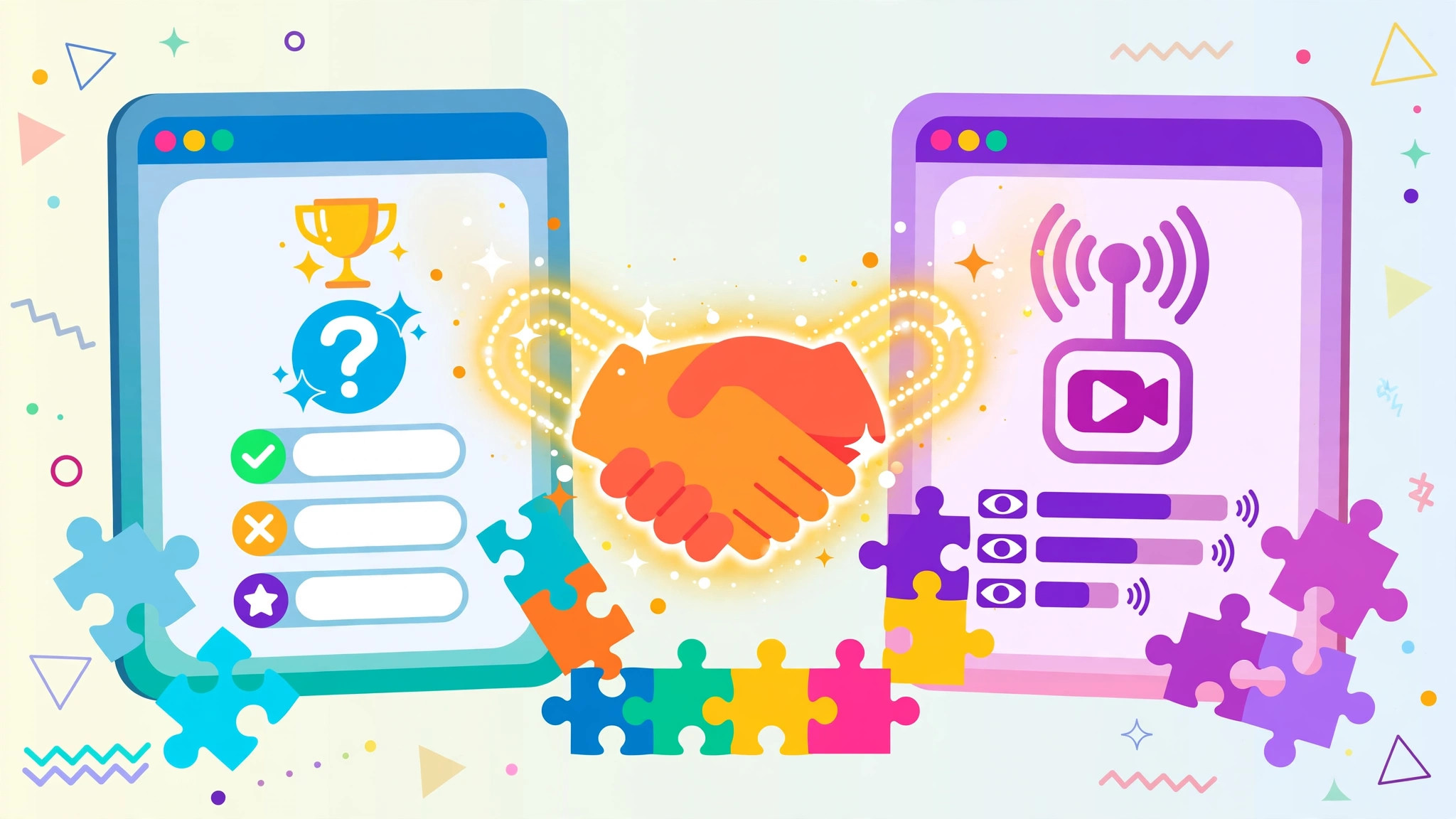
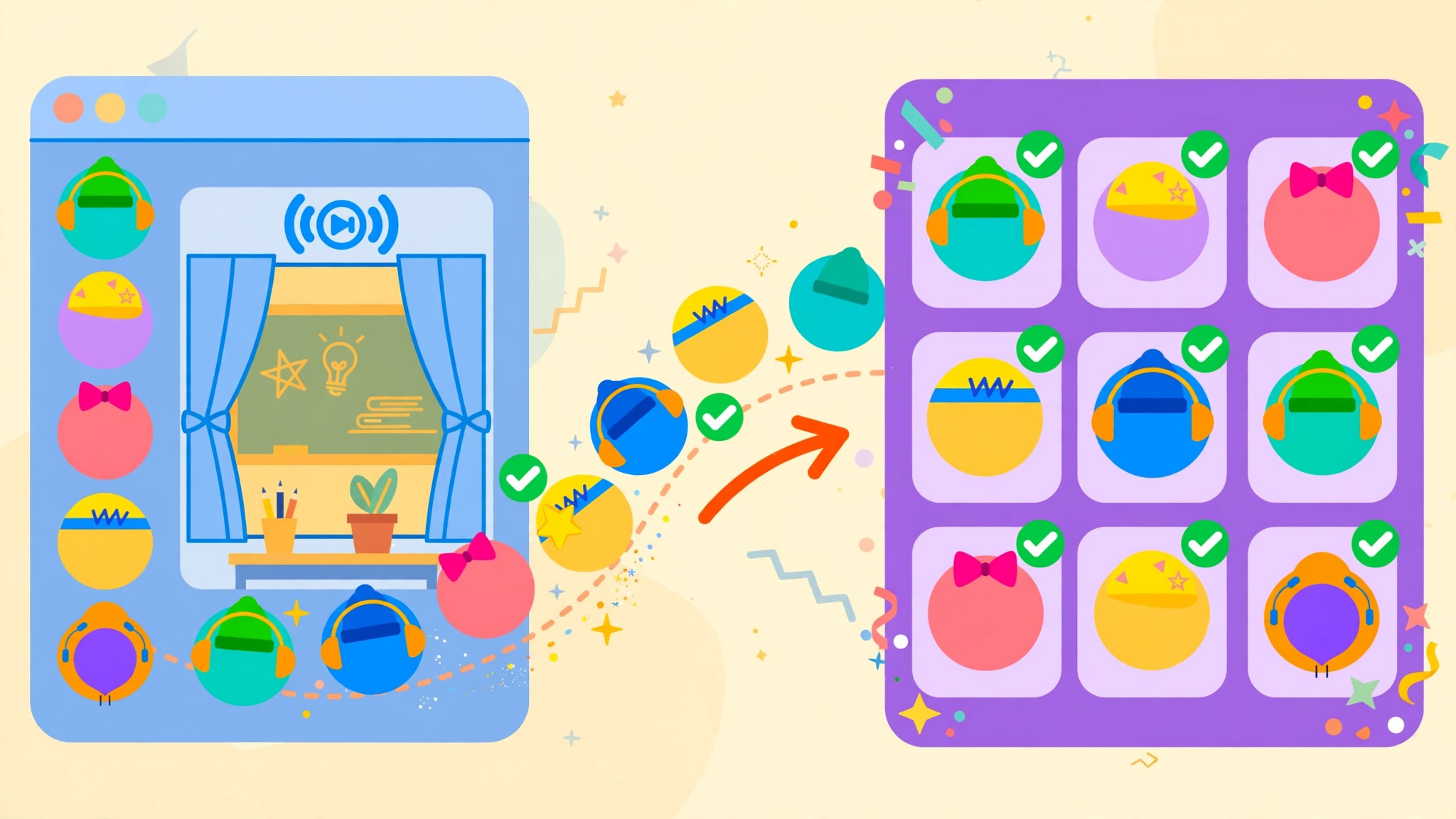
The import roster gimkit flow is the centrepiece of the integration, and it is refreshingly simple. From your Gimkit class, choose the Google Classroom import option, sign in with your school Google account if prompted, select the correct Classroom course, and confirm the import. Within moments, the roster appears as your class list.
A few practices make imports painless:
- Import at the start of term — build the habit while class lists are stable, rather than mid-October when three sections have merged.
- Match one Classroom course to one Gimkit class — resist the temptation to merge two sections into a single game class unless you genuinely teach them together; separate classes mean separate, cleaner reports.
- Check for duplicates immediately — a student who appears twice (often a personal account alongside a school one) will split their data across two identities. Merge or remove the duplicate on day one, while the student is in front of you to confirm which entry is theirs.
- Walk the list on screen — project the imported roster and have students spot their own name. The student who cannot find themselves is tomorrow’s tech problem, solved today in ten seconds.
If a student joins your Classroom late, re-running or refreshing the import (covered below) brings them across — no manual typing, no misspelled names.
sync gimkit with google classroom
Once imported, the day-to-day benefit is how you sync gimkit with google classroom going forward. The roster connection means class membership stays aligned with your official list, and sharing work becomes a single workflow rather than two.
In everyday practice, the pairing looks like this:
- Homework distribution — create the Gimkit assignment, then share it to Google Classroom so it appears in the stream with its due date. Our full walkthrough of Gimkit assignments covers setting goals and deadlines inside Gimkit itself.
- One place for students — students check Classroom for what is due, click through, and play; completion is tracked in Gimkit’s reports rather than relying on students marking work done.
- Results where you need them — Gimkit reports show the detail (who completed, which questions were missed), while Classroom remains your communication hub with students and guardians. Understanding exactly what reports tell you is covered in our guide to Gimkit reports.
One honest expectation to set: syncing keeps rosters and sharing smooth — it does not turn game scores into automatic gradebook marks without your judgement in between. Treat Gimkit results as evidence you review and transfer deliberately; that small step protects you from importing a lucky-guess score as if it were a test grade.
Syncing also quietly fixes the display-name problem that plagues guest lobbies. Because Classroom rosters carry official names, your Gimkit class inherits them, and reports arrive in a form you can paste into a parents’-evening conversation without a decoding session. If your school renames accounts or a student’s registered name changes, updating it in the school system and re-syncing propagates the correction — one edit, in the place your school already trusts, instead of a treasure hunt through every platform you use.
There is a safeguarding comfort here, too. When students arrive via your official roster, you know exactly who is in your class list and nobody else is. The class membership mirrors the group your school itself assigned to you, which keeps the game environment as closed and accountable as your physical classroom.
Making the pair part of your routine
The teachers who get the most from this integration are the ones who ritualise it. Assignments always go to the Classroom stream, never ad-hoc links. Roster changes always happen in Classroom first, then sync across. Game day always starts from the class list, never a paper register.
Spend fifteen minutes connecting the platforms once, and the rest of the year runs on rails: import, assign, play, review. For the official connection steps — which can shift as both platforms update — the Gimkit Help Center is the definitive reference. Set it up this week and let the two systems do the secretarial work while you do the teaching.
one stream, two jobs: keeping the class feed tidy
A gimkit google classroom integration works best when the stream itself stays disciplined, because the feed is where students look first and think later. Post the game or assignment with a predictable title format — date, topic, action — so a student scanning at 8 p.m. can find tonight’s task in seconds. Pin the standing instructions (“how to join, what to do if you’re stuck”) once, at the top, and resist posting them again; repetition trains students to ignore the stream entirely.
Give the feed a closing ritual too. When a game finishes, a two-line comment — top score, one thing the data showed, what’s next — teaches students that the stream is a conversation rather than a noticeboard. Over a term, those micro-summaries become a revision diary the class wrote without noticing.
And when something goes wrong — a link dies, a class list desyncs — say so in the stream, once, plainly, with the fix. A teacher who narrates hiccups calmly in the same place the work lives builds the only kind of trust that matters in a digital classroom: the belief that checking the gimkit google classroom feed is always worth a student’s time.
what to tell parents about the connected classroom
One short paragraph home in September prevents a year of confused emails. Explain that homework games will arrive through the class stream, that students sign in with their school accounts, and that completing the work requires nothing to install and nothing to buy. Name the benefit plainly: you can see completion and accuracy, so “I did it” becomes checkable without turning home into a surveillance state.
Invite questions early, while the stakes are zero. A parent who understands the gimkit google classroom setup in week two becomes an ally who reminds, encourages and occasionally plays along; a parent surprised by it in week twenty becomes a complaint with a forwarding address. The technology connects classrooms to games; the communication connects families to the point of it all.
Keep a copy of that paragraph. Next year’s class deserves the same clarity, and your future self deserves not to rewrite it.
accessibility wins hiding in the integration
The connected route quietly helps your most vulnerable learners most. A student who loses paper instructions weekly cannot lose a pinned stream post. A student who panics about “what’s the homework?” has one permanent place to check, identical in shape every time. Predictability is an accessibility feature, and the integration’s greatest kindness is making the route to work boringly identical for every student, every subject, every week of the year.
One last practical tip: once per term, ask the class what would make the whole homework route clearer. Students answer this with embarrassing precision — a renamed post here, a moved deadline there — and acting on one suggestion visibly is the cheapest trust-building exercise in the digital classroom.
frequently asked questions
Do students need to do anything for the Classroom connection? Almost nothing beyond what they already do: they belong to your Google Classroom course, you import the roster, and they appear in your Gimkit class. Students simply sign in as usual; the connection is teacher-side plumbing they never have to think about.
What happens when a student leaves my Classroom course mid-year? Refresh or re-run the sync so your Gimkit class matches the current roster, and remove the departed student if they linger. Keeping the two lists aligned takes a moment and keeps reports and assignments reaching exactly the right group.
Can I import several Classroom courses? Yes — import each course into its own Gimkit class. One-to-one mapping keeps reports, assignments and memberships cleanly separated per group, which is what you want when the same topic runs in three different sections.
Does Classroom see my Gimkit scores automatically? Treat the platforms as partners, not mirrors: the integration handles rosters and sharing smoothly, while grades remain your professional judgement to review in Gimkit’s reports and record how your school prefers. That deliberate step is a feature — it keeps a lucky game from becoming a misleading mark.
