

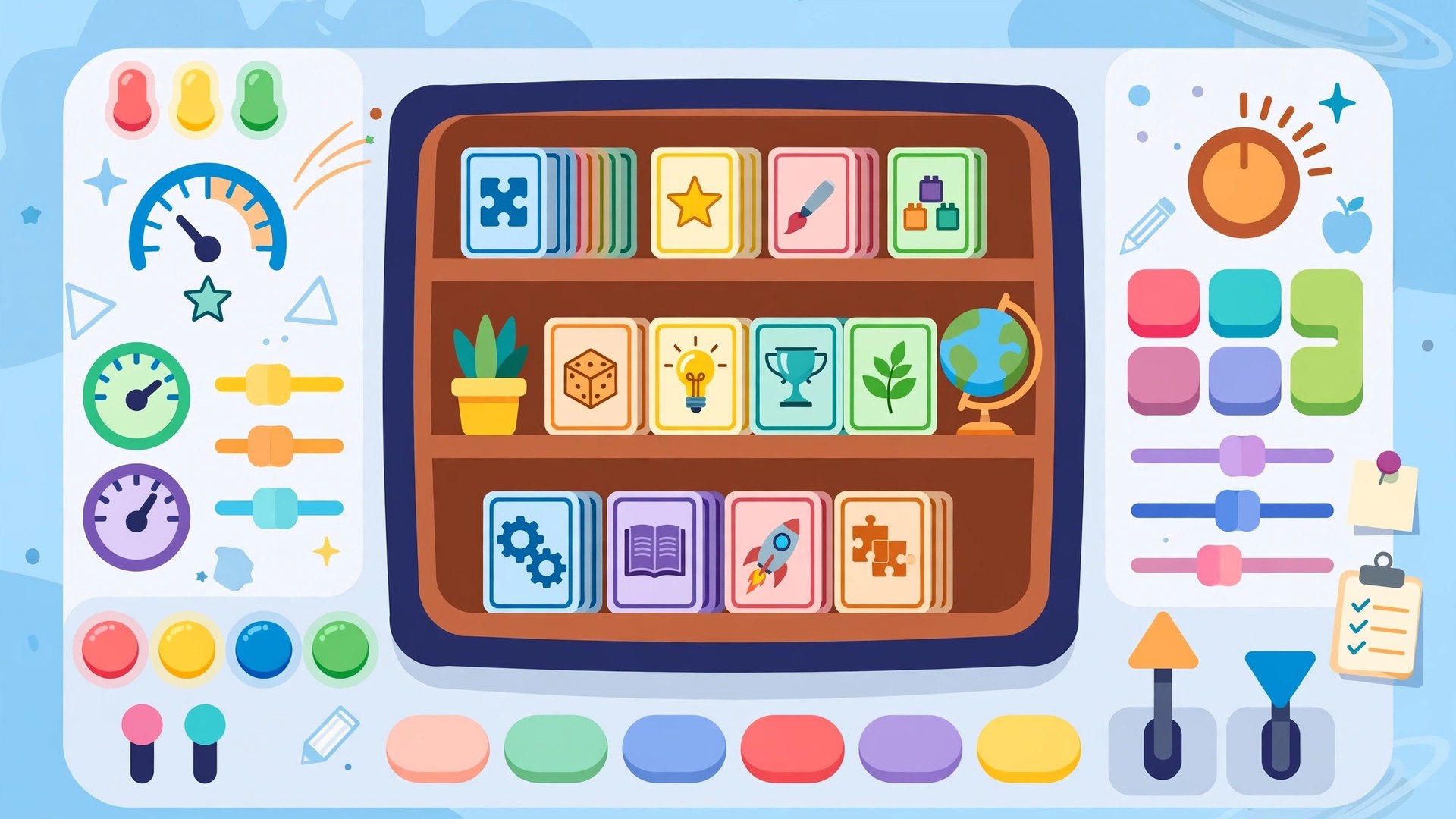
Every Gimkit lesson starts in the same place: the teacher dashboard. It is mission control for your kits, classes, assignments and reports, and teachers who know their way around it start games in seconds while everyone else is still hunting for the right button.
This tour walks through the dashboard section by section, explaining what each area does and how experienced teachers use it day to day. Whether you signed up yesterday or have a year of games behind you, a deliberate tour pays off — most teachers use a fraction of what their Gimkit classes and kits could do simply because they never explored the home screen properly.
gimkit teacher dashboard
The gimkit teacher dashboard is the signed-in home base for your account. From here, everything fans out: building and editing kits, organising classes, launching live games, setting homework, and reading the results afterwards.
Think of the dashboard as having four neighbourhoods:
- Your kits — the library of question sets you have built, saved or duplicated, ready to host or assign.
- Classes — your student rosters, where groups live once and feed every game and assignment.
- Assignments — homework you have set, with due dates, goals and completion tracking.
- Reports — the results of everything played, stored for review whenever you need them.
New teachers should resist the urge to click “host” immediately. Spend ten quiet minutes clicking through each neighbourhood with no class watching. Knowing exactly where your kits live and where reports land removes the only genuinely stressful moment in a Gimkit lesson: thirty students waiting while you search for something. The dashboard rewards familiarity disproportionately — a small investment that pays out every single lesson.

gimkit home screen
The gimkit home screen is what greets you after sign-in, and it is designed around speed. Recent and favourite kits usually sit within easy reach, because the platform assumes — correctly — that most visits end in hosting a game you have played before.
Making the home screen work for you is mostly about hygiene:
- Star or pin your current units — if your platform view lets you surface favourites, keep this term’s kits on top and let last term’s sink.
- Rename ruthlessly from here — when you spot “Quiz (final) FINAL v2” staring at you, fix the name immediately; future-you, mid-lesson, will be grateful.
- Use search, not scrolling — once your library passes twenty kits, the search box is faster than any folder system you might invent.
The home screen is also where account-level things live: your plan status and settings. If a feature you read about seems missing, your home screen’s plan indicators are the first clue — free and Pro accounts see slightly different toolkits, a distinction we unpack fully in our Gimkit reports guide companion pieces and plan comparisons elsewhere on this site.
Worth a special mention is the moment the dashboard handles best of all: the thirty seconds before a lesson. Teachers with a dashboard ritual — log in while the class settles, open the kit, check the mode and settings, project the join screen — look unhurried no matter what the corridor was like. Teachers without one perform the same steps publicly, at speed, with an audience. The dashboard cannot give you more minutes, but it absolutely decides how the minutes you have feel.
The dashboard is also your safety net mid-lesson. A game that needs ending early, a report you want to peek at while students finish, a second kit queued because the first one landed faster than expected — all of it is two clicks from the home base. Knowing that, deeply, changes how relaxed you feel pressing “host” in the first place.
gimkit my kits
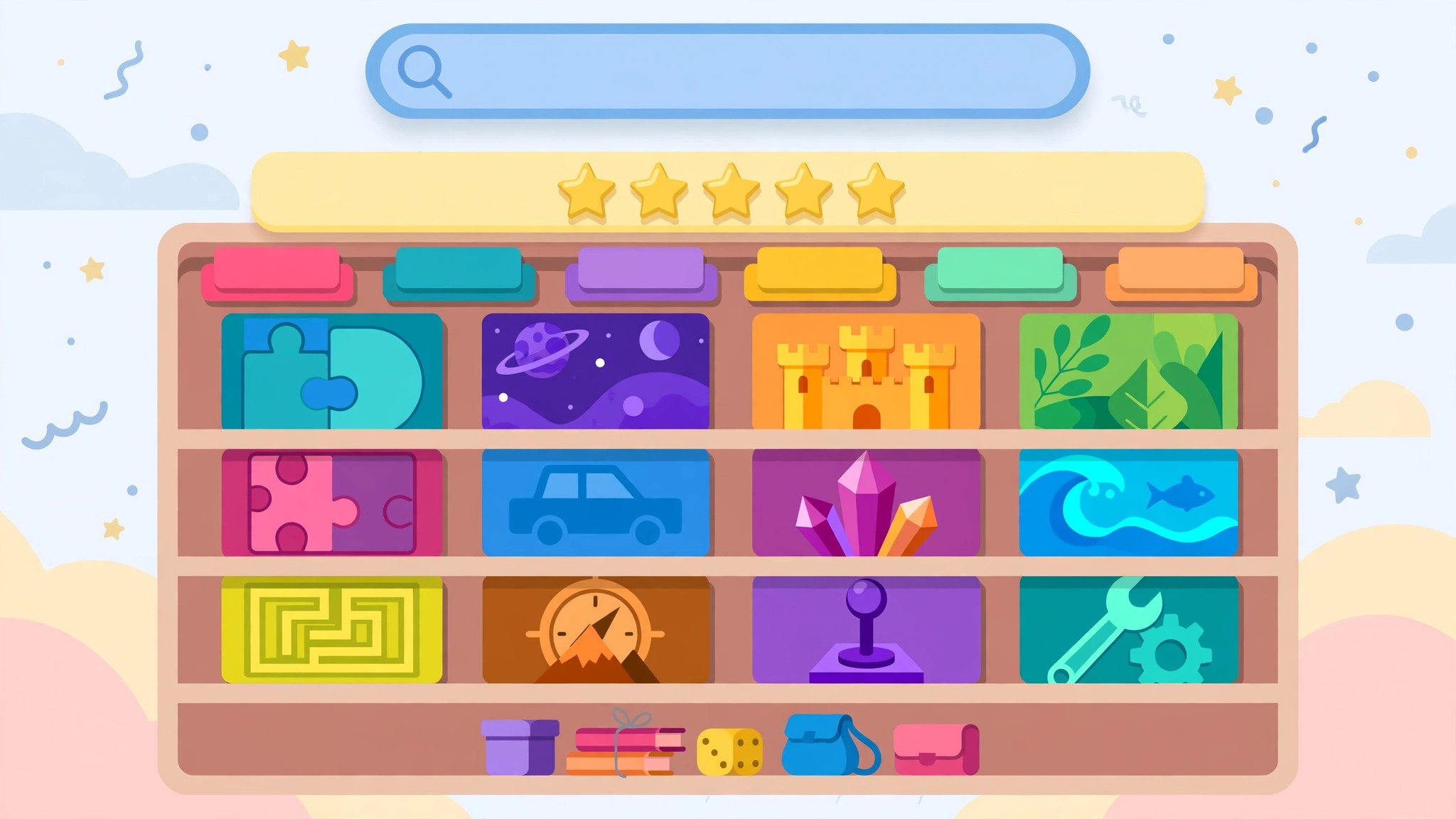
The gimkit my kits area is your personal library, and it deserves the same care as a bookshelf you actually use. Every kit you create, import or duplicate lands here, and how you organise it determines whether Gimkit feels effortless or chaotic by November.
A library system that survives contact with a real school year has three rules:
- Consistent naming — subject, topic, level, in that order, every time: “Science – Circuits – Grade 7” will always beat “Electricity stuff.”
- Duplicate before editing — your played-and-proven kits are assets. Experiments happen on copies, so a bad edit never destroys a class favourite.
- Termly clear-outs — archive or delete the experiments that failed, the one-off assemblies kits, the duplicates of duplicates. Ten minutes per term keeps the library trustworthy.
Your kits section is also the launch pad: from any kit you can host a live game, assign it as homework, edit its questions, or share it with a colleague. New to building? Our step-by-step on how to make a Gimkit kit starts right here, in this library, with the create button you are looking at.

Make the dashboard a habit
Dashboards reward rituals. Start every Gimkit lesson from your kits, end every game with a thirty-second glance at the incoming report, and spend one break per term tidying names and copies. Those three habits turn a busy home screen into a calm command centre.
Interfaces change as platforms evolve, so for the current layout straight from the source, the Gimkit Help Center maintains the official dashboard documentation. Log in today, take the tour with fresh eyes, and notice how much faster your next game starts.
a weekly dashboard routine in four passes
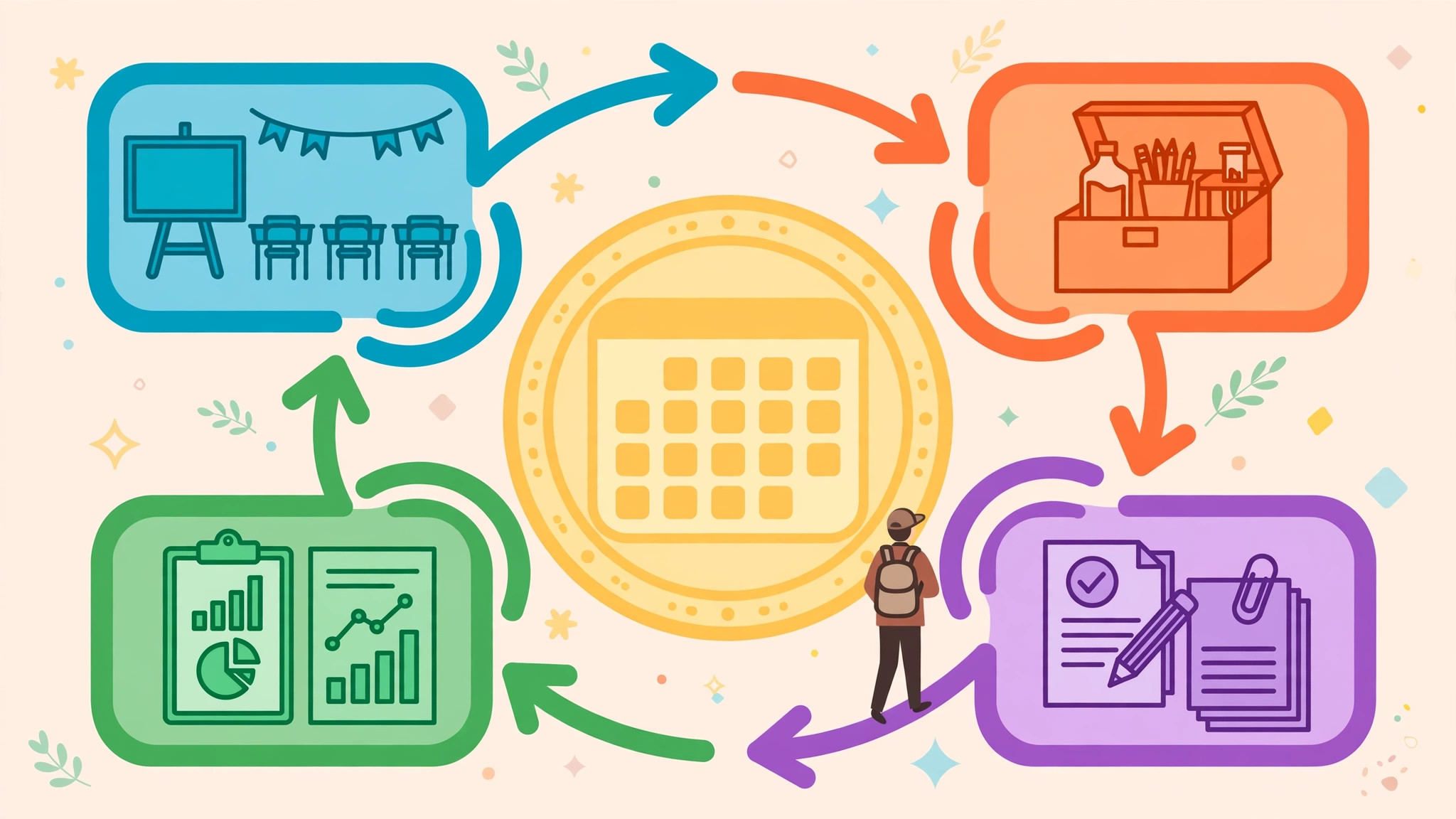
Repetition turns the gimkit dashboard from a homepage into an instrument, and a simple weekly routine does it. Pass one, Monday: build or schedule the week’s games from the gimkit dashboard home view, so the library panel and your planner agree before students arrive. Pass two, before each lesson: open the relevant kit from the dashboard, run the settings check, and launch — the same path every time, so hosting becomes muscle memory rather than a scavenger hunt.
Pass three, Friday: read the week’s story in the dashboard’s recent activity and reports — what got played, what landed, what quietly flopped. Pass four, monthly: spend ten minutes in the gimkit dashboard doing housekeeping — archive the dead kits, fix the embarrassing typo in the title you have been ignoring, and check your classes still match your real timetable.
Four passes, none longer than ten minutes. That is the entire operating system. Teachers who run it stop describing the gimkit dashboard as “the website” and start describing it as “my board” — and that small change of language is the sound of a tool becoming a workplace.
the dashboard on a phone: genuinely useful, within limits
Sooner or later you will host from your phone — a cover lesson, a corridor decision, a homework assignment set from the train. The mobile view of the gimkit dashboard handles the essentials gracefully: launching a saved kit, checking an assignment’s completion, finding a class. Treat the phone as your remote control rather than your workshop: build and edit on a big screen where question lists are readable, and reserve the small screen for launching, checking and rescuing.
Two mobile habits pay off. First, star or pin your emergency kit — the evergreen game that fits any class — so a surprise cover lesson is one search away in the dashboard rather than a panic. Second, after any phone-hosted session, glance at its report later on desktop; small screens are for action, big screens are for noticing. The gimkit dashboard quietly supports both postures, and teachers who assign each device its proper job stop experiencing the phone sessions as second-class.
Set up your home screen, too: a bookmark straight to the dashboard saves the login-page shuffle when thirty students are already looking at you. Seconds saved at launch are attention kept.
keyboard shortcuts of the spirit: your three fastest paths
Every dashboard veteran develops three reflexive routes: to the library search, to the most recent report, and to the class list. Learn yours deliberately this week — notice where your cursor travels, remove one click from each journey with a bookmark, a pin or a renamed kit, and the savings compound across hundreds of lessons. Fluency at the board is not a talent; it is the accumulated residue of tiny, chosen efficiencies, and it buys back the only resource teaching never refunds: your attention during the lesson itself.
The same logic applies to what the dashboard shows you first. Tidy the visible surface — recent, relevant, alive — and the tool starts every session by telling you what you actually came for. A homepage arranged around your real week is worth more than any single feature inside it.
One last practical tip: end each term with a two-minute tidy — archive the dead, rename the cryptic, star the legends. Next term’s first dashboard visit should feel like walking into a prepared classroom, not a storage unit.
frequently asked questions
Where do I find a game I hosted last month? Through the reports area of the dashboard: finished games and assignments live there with their results, organised so you can reopen them any time. This is also where you will find the data for parents’ evenings and department reviews long after the lesson itself.
Can I organise kits into folders? Whether or not your view offers folder-style grouping, a strict naming convention achieves the same result: prefix every kit with subject and topic, and library search becomes instant. Teachers with fifty kits and a naming system find things faster than teachers with ten kits and none.
Why can I not see a feature my colleague has? Almost always a plan difference: free and Pro accounts see different toolkits, and school-managed accounts can differ again. Compare plan indicators on your home screens first before assuming anything is broken — it settles most “missing feature” mysteries in seconds.
Is the student view the same dashboard? No — students see a much simpler world: joining games, their assignments, and their own progress and cosmetics. The management dashboard described here is the teacher’s side of the platform, which is exactly as it should be.
